
|

|

|
|
Printing Code 39 barcodes in Crystal Reports is a seamless process using the Barcodesoft Code 39 UFL (User Function Library) and professional barcode fonts. 1 Register the UFL LibraryOpen your DOS prompt. Note: Windows Vista or Windows 7 users must run the DOS prompt as Administrator. Navigate to the following directory:
CD C:\Program Files (x86)\Common Files\Barcodesoft\FontUtil
Type the following command to register crUFLbcs.dll: regsvr32 crUFLbcs.dll
If registration fails, utilize the Windows .NET Framework 2.0 utility: Regtlibv12 _cruflbcs.tlb2 Create New Formula FieldOpen your Crystal Report. Right-click Formula Fields and select "New..." from the context menu. Enter "Code39" in the Name field, then proceed to the Editor. 
3 Select the Linear Code 39 FunctionDouble-click the "BCSLinearCode39" function within the Visual Basic UFLs list. 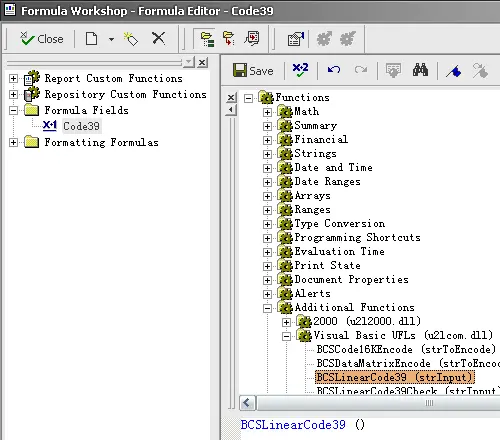
Assign your database field as the parameter for the Code 39 formula. 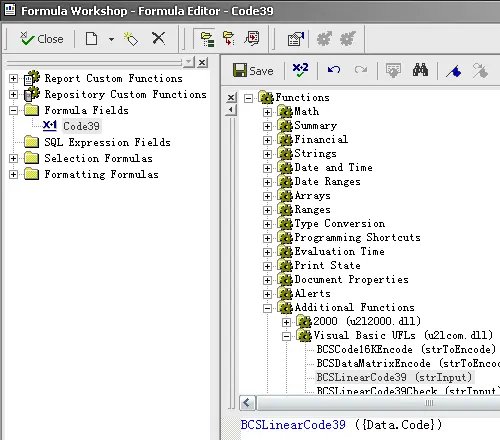
Click "Save" to finalize your formula field. 4 Report Design LayoutDrag and drop the newly created Code 39 formula field onto your Crystal Report design view. 5 Font FormattingRight-click the Code 39 field and choose "Format Field". Under font selection, choose the "Code39mHr" typeface. Your Code 39 barcode is now ready for production! |