How to Integrate UPC-A Barcodes with Microsoft Access
Follow this comprehensive guide to generate and display professional UPC-A and UPC-E barcodes in your MS Access reports using Barcodesoft fonts.
1 Configure Macro Security Settings
Start Microsoft® Access. Depending on your version, follow the steps below to enable macros:
Access 2000 or 2003:
Click Menu > Tools > Macro > Security. Select the Low security level.

Access 2007 - 2019+ :
Click the Microsoft Office Button or File tab.


Navigate to Access Options > Trust Center. Under Macro Settings, select "Enable all macros".

2 Initialize VBA Editor and References
Press ALT + F11 to open the Microsoft® Visual Basic Editor.

Add Barcodesoft DLL Reference
Go to Tools > References. Click Browse and locate cruflbcs.dll.
Typically found in:
C:\Program Files (x86)\CommonFiles\Barcodesoft\Fontutil
Ensure "crUFLBcs 4.0 Type Library" is checked.

3 Import the Barcode Macro Module
Press Ctrl + M to import. Select barcodesoft.bas from the Fontutil folder.
Missing the file? Download the UPC-A VBA Resource here.

4 Apply Barcode Macros to Reports
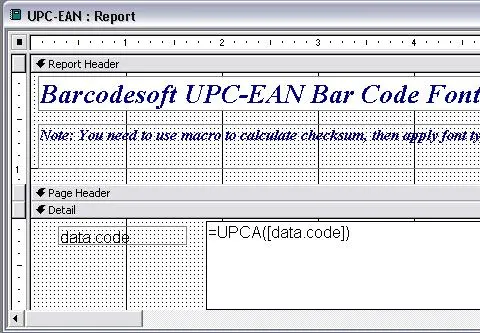
Return to Access and open your report in Design View. In the field where you wish to display the barcode, enter the following macro syntax:
5 Apply Barcode Font Typeface
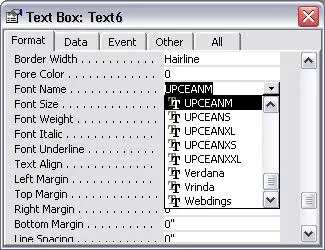
Right-click the field, select Properties, and set the Font Name to a Barcodesoft typeface such as UpcEanM.