Step-by-Step Guide: Integrating UPC-A Barcodes with MS Excel
Learn how to automate barcode generation in Microsoft Excel using Barcodesoft fonts and VBA macros. This tutorial covers security settings, DLL referencing, and formula application.
Configure Excel Macro Security
Before generating barcodes, you must enable macros to allow the Barcodesoft logic to run.
Excel 2000 or 2003:
Navigate to Tools > Macro > Security and choose the Low security level.

Excel 2007 - 2019+ :


Go to Excel Options > Trust Center. Under Macro Settings, select "Enable all macros".

Initialize Visual Basic Editor & References
Press ALT + F11 to open the Microsoft® Visual Basic editor.

Add Barcodesoft DLL
Follow path: Tools > References > Browse
C:\Program Files (x86)\CommonFiles\Barcodesoft\Fontutil\cruflbcs.dll
Select "crUFLBcs 1.0 Type Library" and click OK.

Import the Barcode Macro Module
Press Ctrl + M to import the module. Select barcodesoft.bas.
File not found? Download the UPC-A VBA Resource Pack here

Encoding Data using Formulas
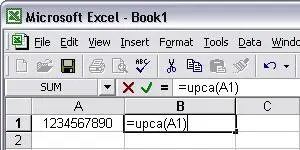
Close the VBA editor. You can now use Excel formulas to encode your data. This is ideal for batch processing entire columns.
=upca(A1)
=upce(A1)
Pro Tip: Leading Zeros
If your UPC code starts with a 0, type an apostrophe (') before the zero to prevent Excel from omitting it.
Apply the UPC-A Barcode Font
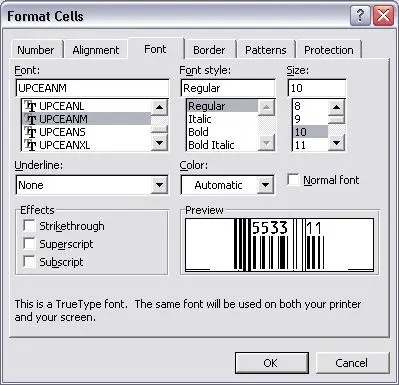
To visualize the encoded data as a barcode, change the cell's font typeface.
- Right-click the target cell (e.g., B1).
- Select Format Cells.
- Under the Font tab, choose UpcEanM.