Generate Code 39 Barcodes in MS Office
Professional barcode solutions for Windows desktop printers.
 |
 |
 |
The Code 39 barcode is one of the most reliable and widely used symbologies in the world. Using Barcodesoft Code39 barcode fonts is a smart, simple way to generate high-quality barcodes. Simply wrap your data in asterisks (e.g., *DATA*) and apply a Barcodesoft font like Code39mHr.
1 Install Barcode Fonts
Copy all TrueType fonts (*.ttf) from your fonts folder to your c:\Windows\Fonts directory.
2 Register DLL Components
Open the DOS prompt (search for 'cmd'). If you are using Windows Vista, 7, 10, or 11, please Run as Administrator.
regsvr32 crUFLbcs.dll

3 Configure Excel Macro Security
Ensure Excel is set to allow the barcode generator to function:
- Excel 2000/2003: Tools > Macro > Security > Choose Low.
- Excel 2007+: Click Office Button
 > Excel Options > Trust Center > Macro Settings > Enable all macros.


4 Open Visual Basic Editor
Press ALT + F11 to launch the Microsoft Visual Basic editor.

5 Add Library References
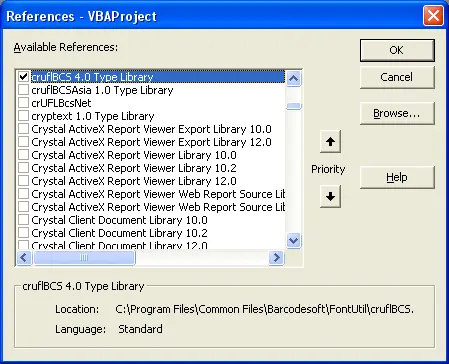
Go to Tools > References. Click Browse and select cruflbcs.dll (usually in the FontUtil folder mentioned in step 2). Check crUFLBcs 1.0 Type Library and click OK.
6 Import the Barcodesoft Module
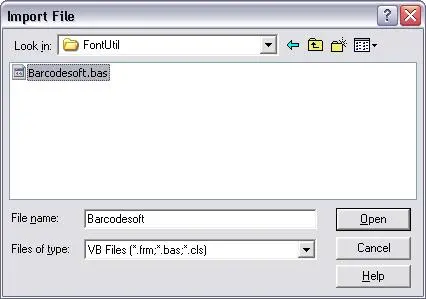
Press Ctrl + M and select barcodesoft.bas from your installation folder.
7 Apply Macros to Encode Data
Return to your spreadsheet. Use these formulas to encode your data cells instantly:
- =Code39(A1)
- =Code39Mod43(A1)
- =USSCode39(A1)

8 Final Step: Apply Font Face
Right-click your encoded cell > Format Cell > Font. Select an appropriate Barcodesoft typeface such as Code39mHr.

Printing in Microsoft Word
For a quick single-label solution, launch the Barcodesoft Encoder, type your data, and click Copy to Clipboard. Simply press Ctrl + V in Word to see your barcode.
Advanced Tip: You can also use Word Mail Merge with Access or Excel as a data source to generate batch barcodes.