1. Configure Security Settings
For Modern Access Versions: Navigate to File → Options → Trust Center → Trust Center Settings → Macro Settings and select "Enable all macros."

2. Open the VBA Editor
Access the Visual Basic for Applications (VBA) editor quickly by pressing ALT + F11 on your keyboard.

3. Add Necessary References
In the VBA editor, go to Tools → References. Click "Browse" to locate the cruflbcs.dll file. Select crUFLBcs 5.0 Type Library from the list and click OK to enable the barcode functionality.

4. Import the Barcode Module
Press Ctrl + M to import the barcodesoft.bas file. This adds the required barcode logic to your project.

5. Apply Barcode Expressions
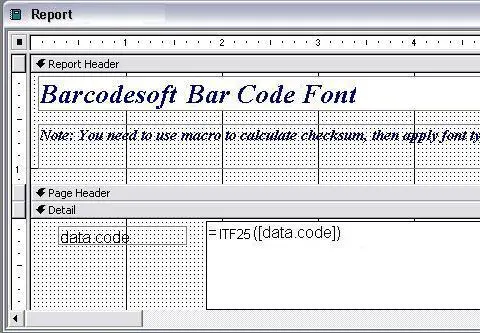
Return to your report in Design View. Select the text box where you want the barcode to appear and enter the following expression into the Control Source property:
Be sure to replace 'tableName' and 'fieldName' with your actual database values.
6. Set the Barcode Font
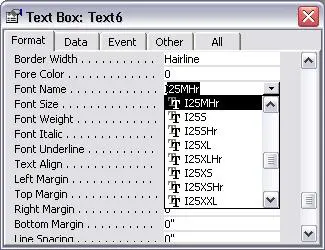
Finally, right-click the text box, select Properties, and change the font to I25MHr. Your data will now instantly render as a professional-grade Interleaved 2-of-5 barcode.