How to Generate Data Matrix Barcodes in Microsoft Excel
A professional tutorial on using VBA macros and specialized fonts to create scannable Data Matrix 2D barcodes within your Excel spreadsheets.
1 Configure Macro Security Settings
To run the barcode encoding scripts, you must first enable Macros in Microsoft Excel.
For Excel 2000 or 2003:
Go to Tools > Macro > Security and select the Low security level.

For Excel 2007 to 2019 / Office 365:


Click the Office Button/File > Excel Options > Trust Center > Trust Center Settings > Macro Settings. Choose "Enable all macros".

2 Set Up VBA Library References
Open the Visual Basic Editor by pressing ALT + F11.

Navigate to Tools > References. Click Browse and locate cruflbcs.dll.
Ensure crUFLBcs 4.0 Type Library is checked as shown below:

3 Import the Barcodesoft VBA Module
While in the VBA Editor, press Ctrl + M to import a module. Select barcodesoft.bas from your installation folder.
Missing the file? You can download the Data Matrix module here: cruflbcs.zip

4 Encode Data Using Excel Formulas
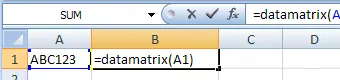
Return to your spreadsheet. You can now use the custom =datamatrix(xxx) formula. Simply use a cell reference as the parameter to generate the encoded string.
5 Apply Font and Alignment Settings
To transform the encoded text into a visual barcode, follow these formatting steps:
A. Select the Cell
Right-click your formula cell and select Format Cells.

B. Change Font
Go to the Font tab and select BcsDatamatrixS.

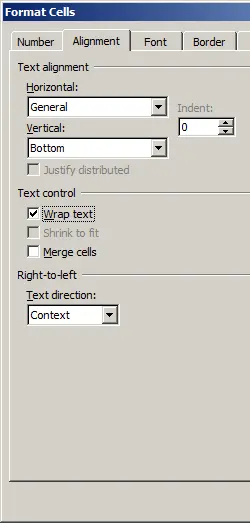
C. Enable Text Wrap
Go to the Alignment tab and check the "Wrap text" box. This is critical for 2D barcodes to render in a grid.
Final Scannable Result
Your Data Matrix barcode is now ready! Even if small gaps appear between lines on the screen, the BcsDatamatrixS font is specifically engineered to ensure those gaps disappear upon printing, maintaining 100% scannability.
