

How to Generate Code 128 Barcodes in Crystal Reports
Follow this comprehensive guide to integrate high-quality **Code 128 barcodes** into your Crystal Reports using Barcodesoft fonts and User Function Libraries (UFL).
Register Barcode UFL DLLs
Run the Command Prompt as Administrator to register the required runtime components.
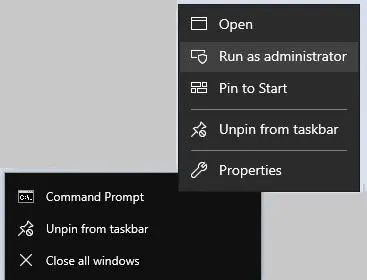
# For 32-bit Systems / DLL
cd "C:\Program Files (x86)\Common Files\Barcodesoft\FontUtil"
regsvr32.exe cruflbcs.dll

# For 64-bit Systems / DLL
cd "C:\Program Files (x86)\Common Files\Barcodesoft\FontUtil"
%systemroot%\System32\regsvr32.exe cruflbcs_x64.dll
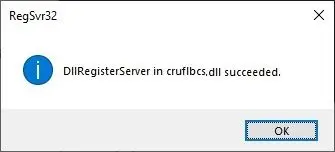
Confirmation of successful registration:
Create New Formula Field
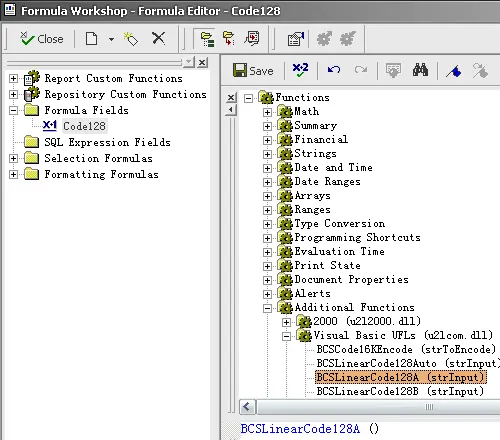
Open Crystal Reports, right-click Formula Fields, and select New.... Name your formula "code128".

Apply BCSLinearcode128 Function
Within the Formula Editor, locate Visual Basic UFLs and double-click the BCSLinearcode128 function. Enter your database field as the parameter.
Add to Report Design
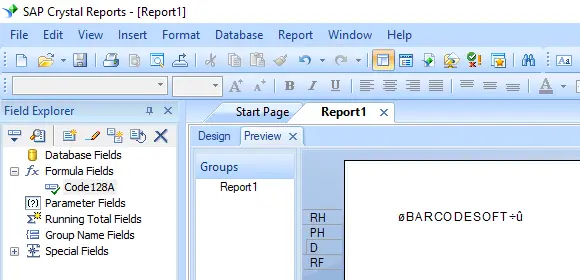
Drag the new formula field onto your Crystal Report design view.
Format with Barcode Font
Right-click the formula field and choose Format Field. Set the font typeface to code128mHr.
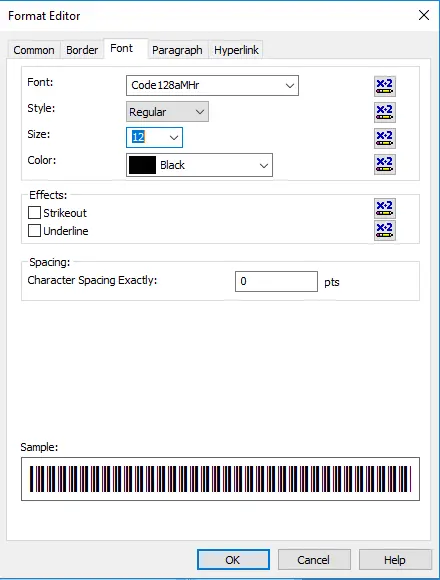
Your Code 128 barcode is now ready for production!
