How to Print Aztec Codes in Crystal Reports
A comprehensive developer's guide to integrating high-density 2D Aztec barcodes into your Crystal Reports using UFL functions.


Initialize Formula Field
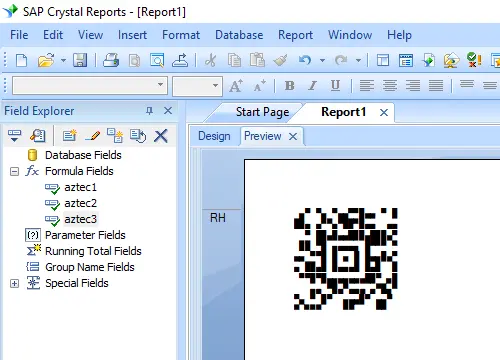
Open your report in Crystal Reports. Navigate to the Field Explorer, right-click on Formula Fields, and select New....
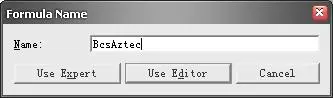
Name your new field Aztec1 and click OK to enter the Workshop.
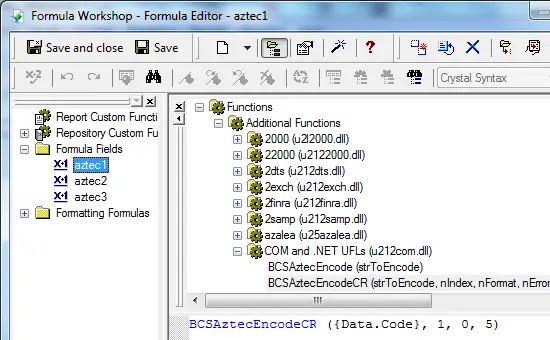
Select the Aztec UFL Function
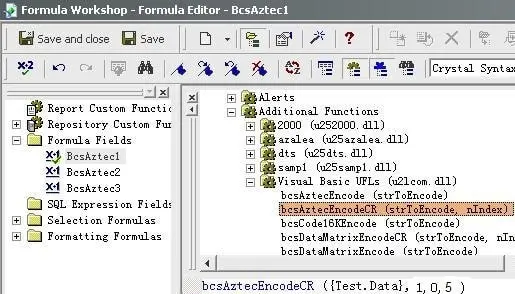
Locate the Barcodesoft Aztec encoding function within the function tree:
Double-click BCSAztecEncodeCR to insert it into your formula.
Handle String Limits
Crystal Reports imposes a 254-character limit on individual formula fields. To encode large datasets into an Aztec Code, you must split the data across multiple formula fields.
Pro Tip: Calculate Required Fields
Use BCSAztecFormulaNoForCR({Your.DatabaseField}) to determine exactly how many formula fields are required for your specific data length.
Format Text Object
- Insert a Text Object into your report.
- Drag and drop your Aztec formula fields (
Aztec1,Aztec2, etc.) into the text object in order. - Right-click the text object and select Format Field.
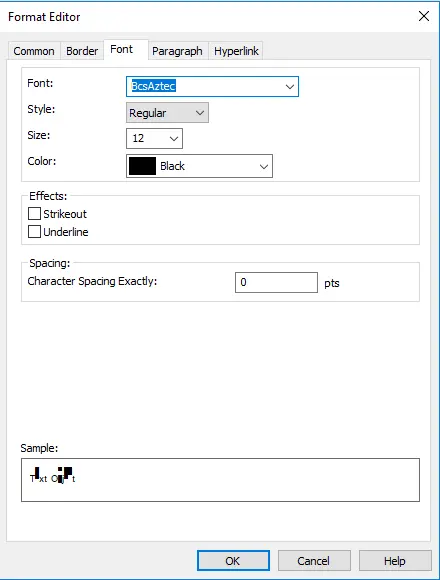
- Set the font typeface to BcsAztec.