Ultimate Guide: How to Generate Aztec Barcodes in Microsoft Excel
Generate high-density 2D barcodes easily with the Barcodesoft Aztec Package.
Learn how to use the BcsAztec TrueType font and
DLL integration to print professional barcodes directly from your spreadsheet.
1 Install Fonts and Register DLL
First, prepare your system environment by copying the necessary assets:
- Copy the TrueType font bcsAztec.ttf to
C:\Windows\Fonts. - Copy cruflbcs.dll and barcodesoft.bas to
C:\Program Files (x86)\Common Files\Barcodesoft\FontUtil.
Open the DOS prompt as an Administrator and run the following commands to register the library:
CD C:\Program Files (x86)\Common Files\Barcodesoft\FontUtil
regsvr32 crUFLbcs.dll

2 Configure Microsoft Excel Macro Security
Launch Microsoft Excel to begin configuration.
Excel 2000 or 2003
Go to Menu > Tools > Macro > Security. Select Low Security.

Excel 2007 and Newer
Click the Office Button, then Trust Center > Macro Settings > Enable all macros.

3 Visual Basic (VBA) Integration
Press ALT + F11 to open the VBA Editor.

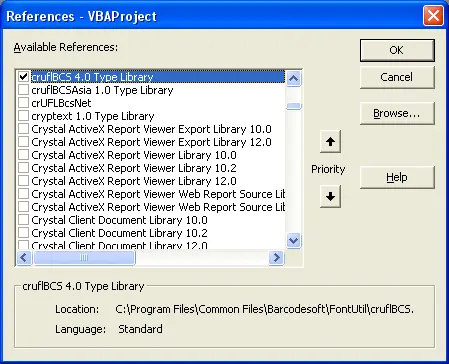
Add Library Reference:
Tools > References > Browse > Select cruflbcs.dll. Check crUFLBcs 4.0 Type Library.
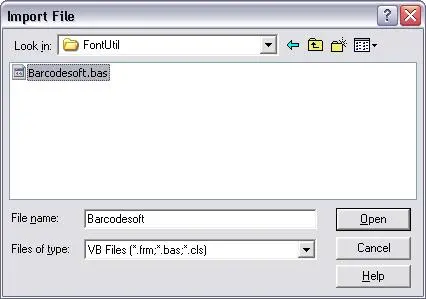
Import Module:
Press Ctrl + M and select barcodesoft.bas.
4 Apply Aztec Encoding to Data
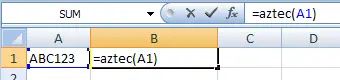
Close the VBA editor and return to your sheet. Use the following formula to encode your data:
Final Formatting Steps
1. Set Font Typeface
Right-click cell > Format Cells > Font > Choose BcsAztecS.
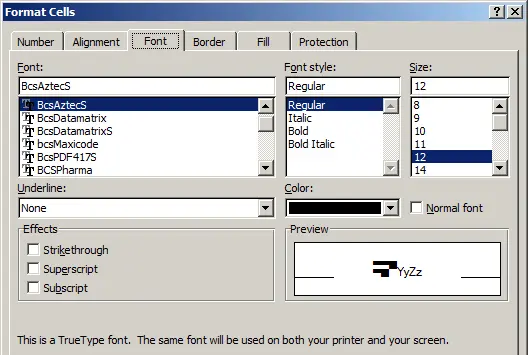
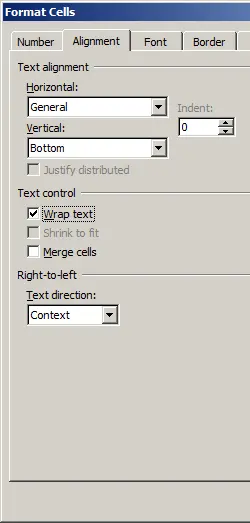
2. Enable Text Wrap
Alignment Tab > Select "Wrap Text".