Integrating UPC-A Barcodes into Crystal Reports
Follow this step-by-step technical guide to generate professional **UPC-A** barcodes using the **Barcodesoft UFL** and custom font typefaces.
Initialize Formula Field
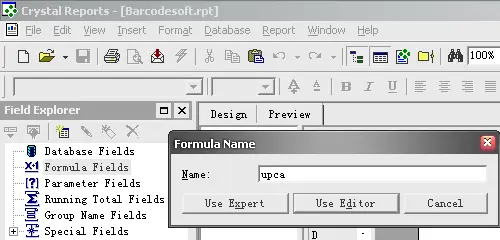
Launch your report designer. Right-click on Formula Fields in the Field Explorer and select New....
Name the formula upca and proceed to the Formula Editor.
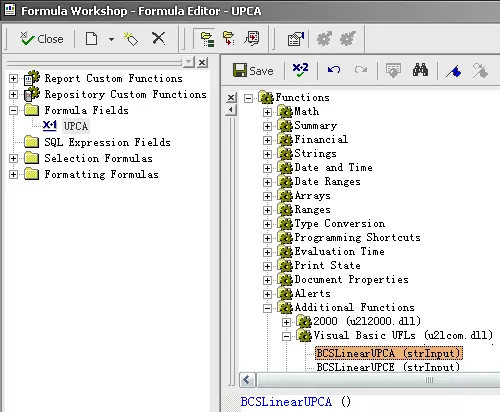
Apply Visual Basic UFL Function
Locate the Visual Basic UFLs category. Double-click the BCSLinearupca function to insert it into your editor.
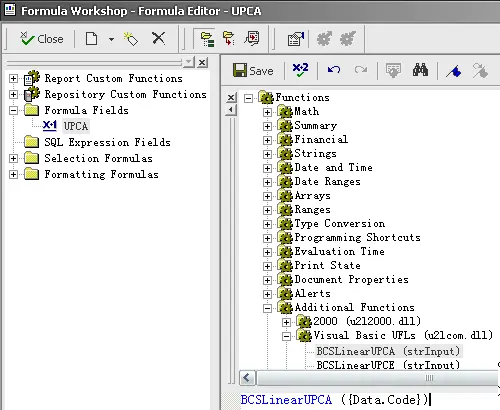
Provide your database field as the parameter to ensure dynamic barcode generation.
Placement & Layout
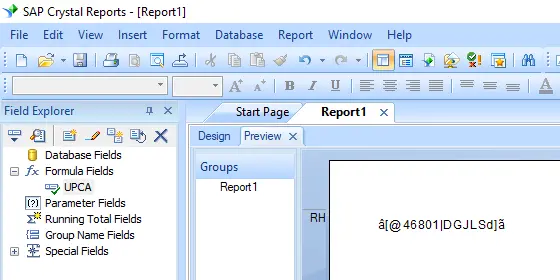
Drag the upca formula into your **Design View**.
Initially, the field will display encrypted characters—this confirms the checksum calculation is active before the font is applied.
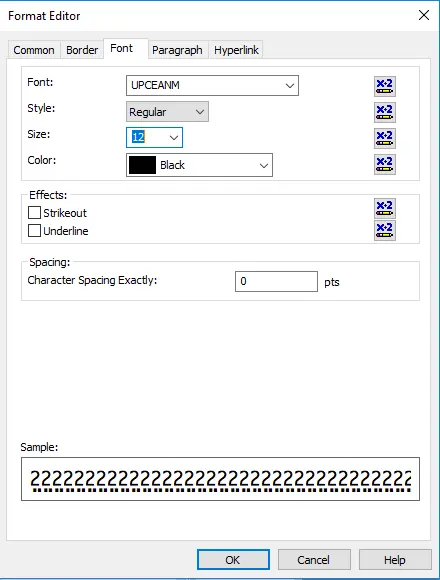
Font Application
Right-click the field and select Format Field. In the Font tab, select UpcEanM (or your preferred aspect ratio typeface). The strange characters will instantly transform into a scannable barcode.