How to Generate Data Matrix Barcodes in Crystal Reports
A comprehensive step-by-step guide to installing Barcodesoft UFL and using formulas to create high-density 2D barcodes.
1 Register the Barcodesoft UFL DLL
To enable Data Matrix encoding functions, you must register the cruflbcs.dll. Start by running the Command Prompt as Administrator.
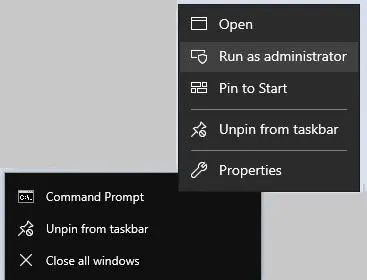
For 32-bit environments, execute these commands:
cd "C:\Program Files (x86)\Common Files\Barcodesoft\FontUtil"
regsvr32.exe cruflbcs.dll

For 64-bit environments, execute:
cd "C:\Program Files (x86)\Common Files\Barcodesoft\FontUtil"
%systemroot%\System32\regsvr32.exe cruflbcs_x64.dll
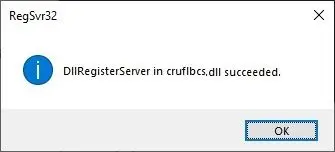
A successful registration will trigger this confirmation:
2 Create Formula Fields in Crystal Reports
Crystal Reports limits formula fields to 255 characters. Since Data Matrix encoding generates long strings, we must split the data.
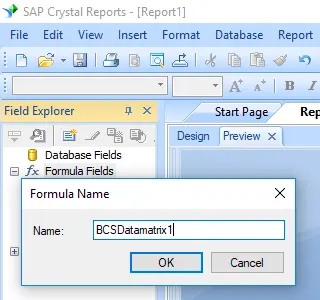
- Right-click Formula Fields in your Field Explorer and select New.
- Name the field
BcsDataMatrix1and click Use Editor.
Pro Tip: Use the following function to check how many formula fields you will need based on your data length:
BCSDatamatrixFormulaNoForCR({Test.Data})

3 Split and Encode Data
Create subsequent formula fields (e.g., BcsDataMatrix2, 3) and use the BCSDataMatrixEncodeCR function:
BCSDataMatrixEncodeCR({Data}, 2, 0, 0, 0)
Parameter Breakdown:
- 1. String: The data field to encode.
- 2. Index: The part number (1, 2, or 3).
- 3. Format: 0-30 (0 = Auto-select).
- 4. Method: 1-6 (ASCII, C40, TEXT, X12, EDIFACT, BASE256).
- 5. GS1: Boolean (Set to 0 for non-GS1).

4 Assemble and Apply Font
Drag a Text Object into your report. Inside this object, place your formula fields in sequence. Initially, you will see a string of hex codes.
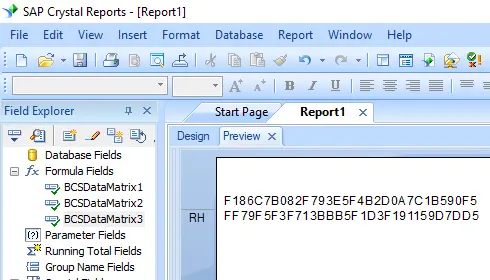
Right-click the Text Object and select Format Object. Change the font to BcsDatamatrix.

Final Result
Once the font is applied, your report will display a perfectly scannable Data Matrix barcode.
