How to Generate Aztec Codes in Microsoft Access
Step-by-step developer guide for high-capacity 2D matrix barcode integration using Barcodesoft fonts and MS Access VBA.


What is Aztec Code?
Aztec Code is a robust 2D matrix barcode symbology known for its high-capacity data encoding. Unlike traditional barcodes, it efficiently handles both standard ASCII and Extended ASCII characters, making it ideal for healthcare, transportation, and ticketing industries.
1 Registration of crUFLbcs.dll
Install the demo and open your DOS prompt (as Administrator for Win 7/10/11). Run the following command to register the DLL:
regsvr32 crUFLbcs.dll

2 Enable Macro Security
To allow barcode generation, adjust your Macro settings. In Access 2007-2019+, navigate to:
Access Options » Trust Center » Macro Settings » Enable all macros

3 VBA Configuration & References
- Press ALT + F11 to open the Visual Basic Editor.
- Go to Tools » References, click Browse, and locate
cruflbcs.dll. - Check crUFLBcs 4.0 Type Library.
- Press CTRL + M to import
barcodesoft.bas.
VBA Code Snippet
Public Function Aztec(strToEncode As String) As String
    Dim obj As cruflBCS.CAztec
    Set obj = New cruflBCS.CAztec
    Aztec = obj.EncodeCR(strToEncode, 0, 0, 0)
    Set obj = Nothing
End Function
4 Render the Aztec Barcode
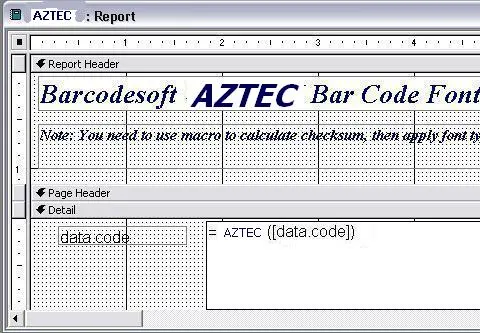
Create a TextBox in Design View and set the Control Source using your table and field names:
=Aztec([TableName.FieldName])
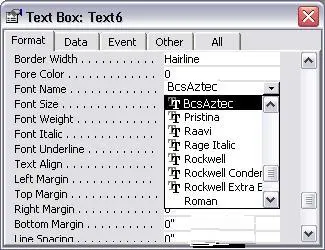
Finally, right-click the TextBox, select Properties, and set the font typeface to BcsAztec.