Microsoft Access Code 128 & GS1-128 Barcode Guide
Easily integrate professional barcode printing into your Access databases using Barcodesoft high-density fonts.


Code 128 is a high-density alphanumeric symbology used worldwide for shipping and inventory. Because it requires a mandatory checksum calculation, printing it directly from a font requires a helper function. Barcodesoft provides the perfect font package and VBA tools to make this seamless on any Windows computer.
Install TrueType Fonts
Copy all TrueType font files (*.ttf) from your package's fonts folder to C:\Windows\Fonts.
Register Encoder DLL
Open the DOS Command Prompt (Run as Administrator in Windows Vista/7/10/11) and navigate to the utility folder:
regsvr32 crUFLbcs.dll

If registration fails, use the .NET Framework utility: Regtlibv12 _cruflbcs.tlb
Configure Access Macro Security
Ensure macros are enabled so the barcode functions can run. In Access 2007+, go to Trust Center Settings and set Macro Settings to "Enable all macros".


Add DLL References in VBA
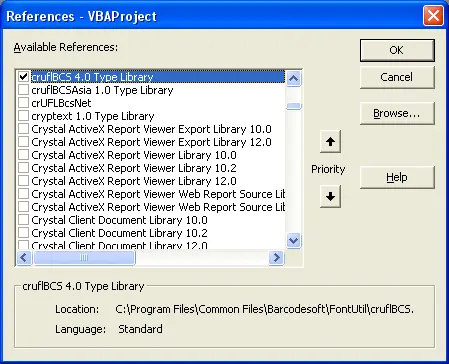
Press Alt+F11 to open the Visual Basic Editor. Go to Tools > References, click Browse, and select cruflbcs.dll from the FontUtil folder.
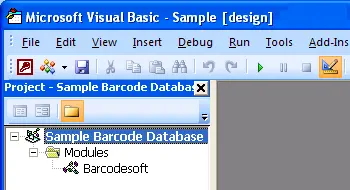
Import VBA Module
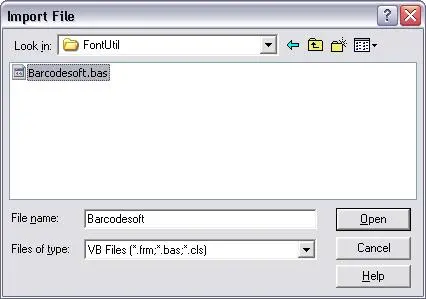
Press Ctrl+M and import barcodesoft.bas. Ensure your module contains the following function logic:
Public Function GS1128(ByVal strToEncode As String) As String
    Dim obj As cruflBCS.CLinear
    Set obj = New cruflBCS.CLinear
    GS1128 = obj.UCCEAN128(strToEncode)
    Set obj = Nothing
End Function

Public Function Code128B(strToEncode As String) As String
    Dim obj As cruflBCS.CLinear
    Set obj = New cruflBCS.CLinear
    Code128B = obj.Code128B(strToEncode)
    Set obj = Nothing
End Function
Display Barcodes in Reports
- Create a report in Design View.
- In the field's Control Source, enter the macro (e.g.,
=Code128B([TableName].[FieldName])). - Right-click the field, choose Properties, and set the Font to an appropriate typeface like
code128amHr.

