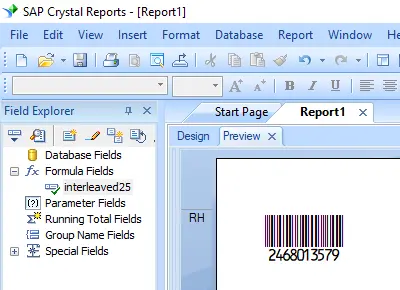
SAP Crystal Reports 2008 / 2011 / 2013 / 2016 are 32-bit.
SAP Crystal Reports 2020 / 2025 are 64-bit.
1.1 If using 64-bit SAP Crystal Reports, register the 64-bit cruflbcs_x64.dll. Open your command prompt as an administrator and execute the following:
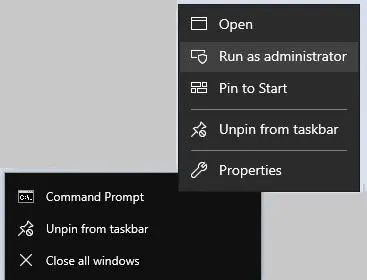
Execute these commands to register the 64-bit DLL:
            cd "C:\Program Files\Common Files\Barcodesoft\FontUtil"

            %systemroot%\System32\regsvr32.exe cruflbcs_x64.dll
1.2 If using 32-bit SAP Crystal Reports, register the 32-bit cruflbcs.dll. Simply run:
            cd "C:\Program Files (x86)\Common Files\Barcodesoft\FontUtil"

            regsvr32.exe cruflbcs.dll

A confirmation window will appear once the registration is successful.
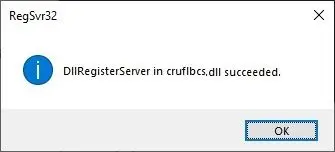
2. Easily Locate the UFL Function.
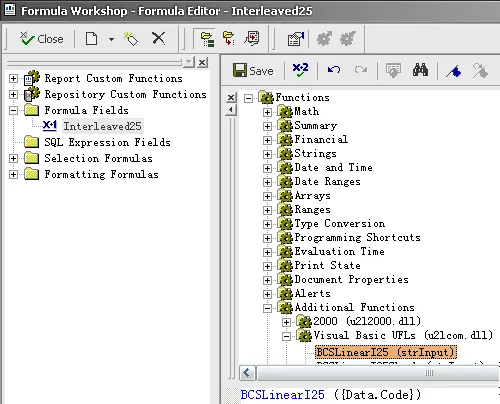
Quickly find the tool you need by navigating: Functions List ⇒ Additional Functions ⇒ COM and .NET UFLs (u212com.dll) ⇒ Visual Basic UFLs. Simply double-click the BCSLineari25 function to get started.
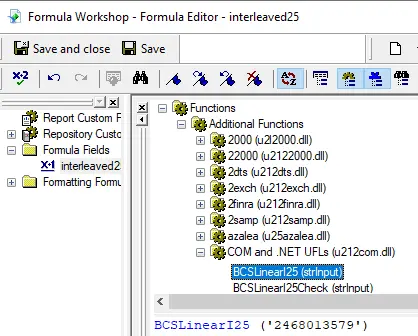
3. Design a New Formula Field
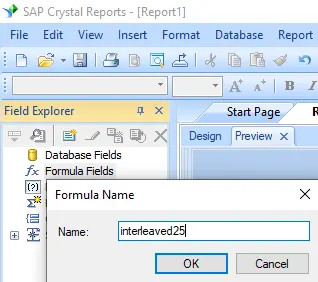
Open your report, right-click Formula Fields, and select "New...". Name your field "I25MHr" and click "Use Editor" to open the configuration window.
4. Map Your Data
Select your desired database field as the parameter for the formula. Once linked, click the "Save" button to finalize your new formula field.
5. Add to Report Design
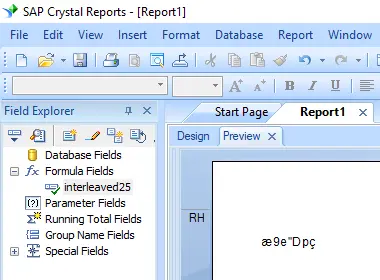
Simply drag and drop your new I25MHr field onto your report layout. You may notice raw characters initially—this is expected, as we will now apply the specialized barcode font to transform them into high-quality barcodes.
6. Apply the Professional I25MHr Font.
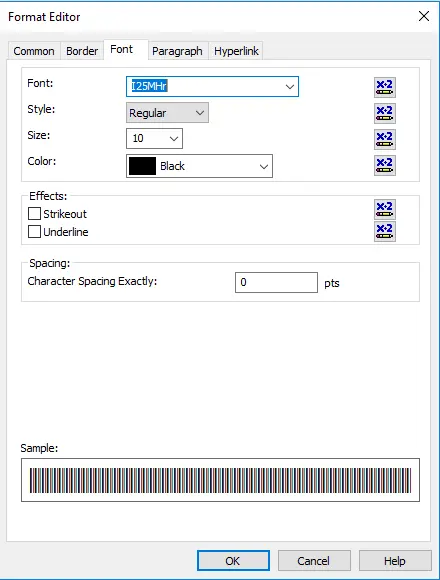
Right-click your formula field and select "Format Object." Under the font settings, choose "I25MHr" from your list of available fonts.
7. Professional Results.
Click "OK," and your data will instantly render as a clean, scannable Interleaved 2-of-5 barcode right within your report.