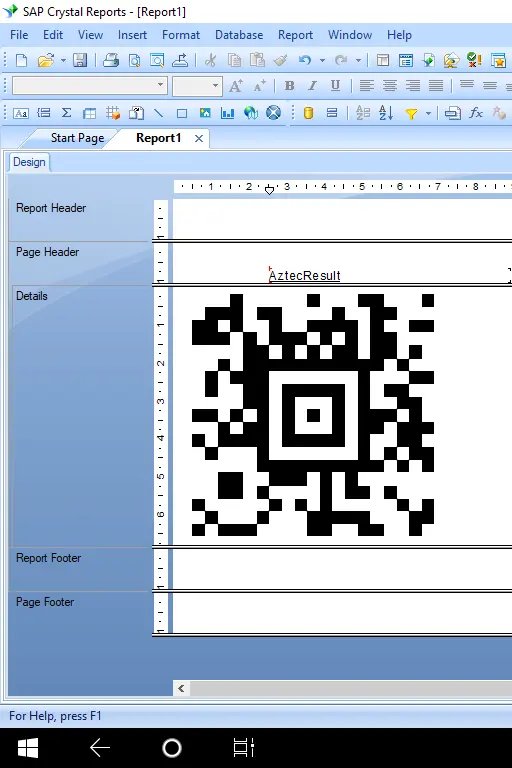
How to Generate Aztec Code in Crystal Reports via SOAP Web Service
A streamlined, no-download solution for dynamic barcode generation using Barcodesoft API.
Efficiency Benefits
- Zero Installation: No 3rd-party software or local downloads required.
- Cloud-Powered: Real-time barcode generation via Barcodesoft SOAP API.
- Lightweight: Keeps your Crystal Reports environment clean and fast.
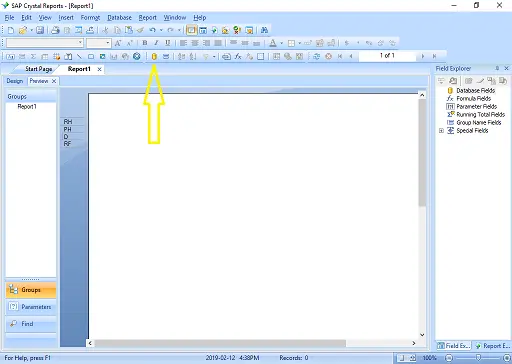
1. Access Database Expert
Launch your report and click the Database Expert button located in the top toolbar to begin the connection process.
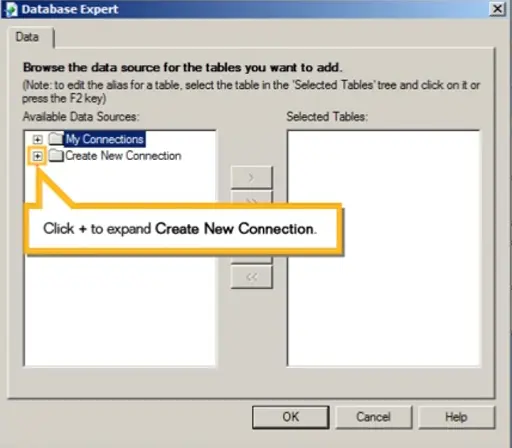
2. Create New Connection
Expand the Create New Connection folder by clicking the '+' icon.
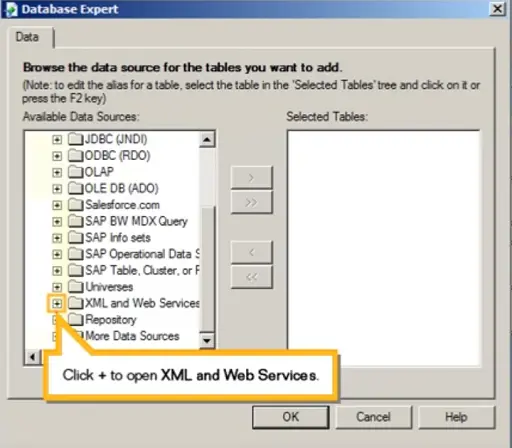
3. Select XML and Web Services
Scroll down the list and expand XML and Web Services to initiate the API integration.
4. Configure Web Service Data Source
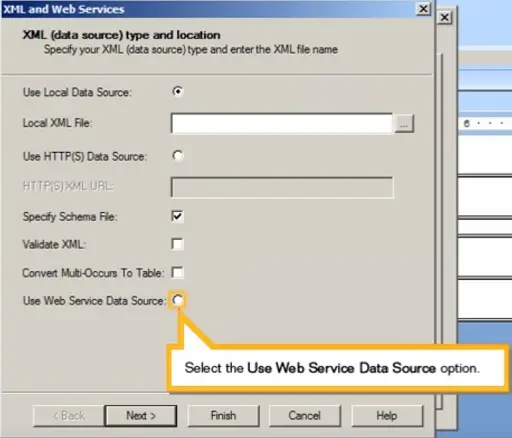
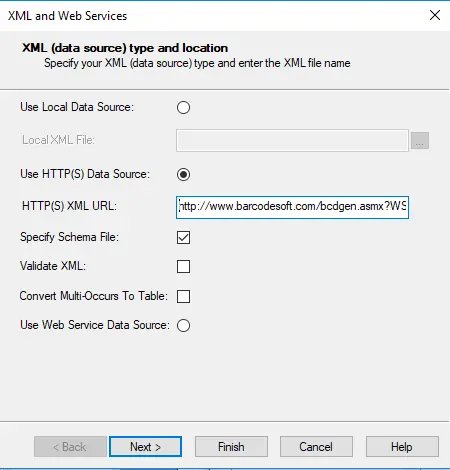
In the popup, select Use Web Service Data Source and click Next. Then, choose the Use HTTP(S) WSDL option and paste the following URL:
[http://www.barcodesoft.com/bcdgen.asmx?WSDL](http://www.barcodesoft.com/bcdgen.asmx?WSDL)
6. Authentication & Tokens
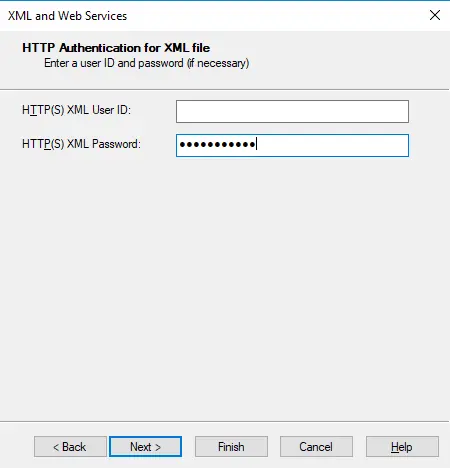
Leave the User ID blank. Enter your unique token in the Password field. Tip: Use "BarCodeSoft" as a demo token if you are just testing.
7. Choose Aztec Method
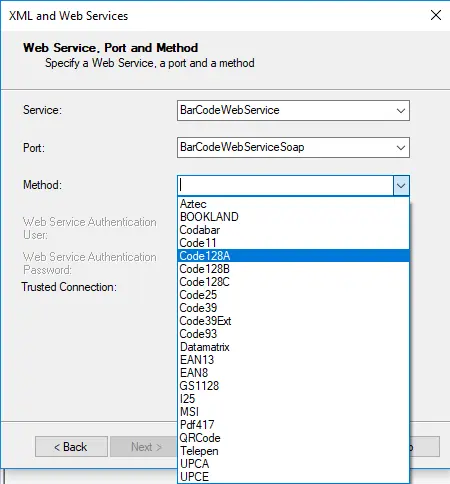
Select Aztec from the dropdown list of available barcode methods and click Finish.
8. Import AztecResponse
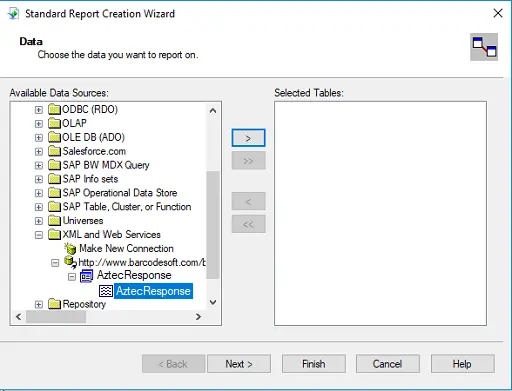
Select AztecResponse from "My Connections," move it to the right with the arrow button, and click OK.
9. Enter Parameter Values
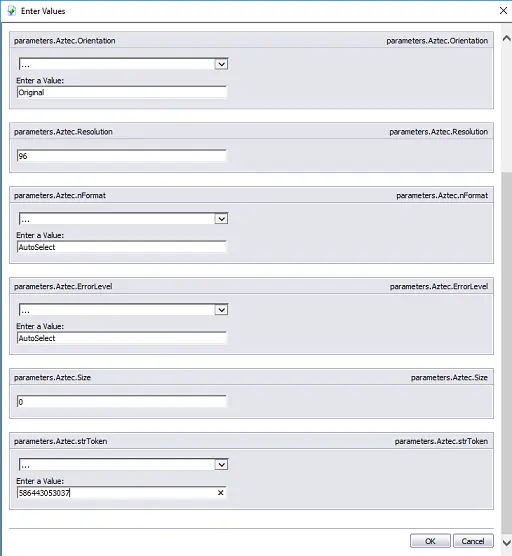
| Parameter | Recommended Value |
|---|---|
| strToEncode | Your data to be encoded |
| Format/nFormat | AutoSelect |
| ImageFormat | BMP, JPG, PNG, WMF, TIFF, or GIF |
| Orientation | Original (or Rotate90, 180, 270) |
| Resolution | 96 (Screen standard) |
| ErrorLevel | AutoSelect |
| Size | 0 (Set both to zero) |
| strToken | Your API Token |
10. Finalize the Report
Simply drag and drop AztecResult into your report canvas. Your dynamic Aztec barcode is now ready for use!